
Regex FormatterRegex is code. It's the only code we ship unformatted.
Every other language gets an auto-formatter — indent, align, wrap, review, merge. Regular expressions get a single 300-character line and a squint. The new Format button fixes that: it parses your pattern into a syntax tree and lays it out in free-spacing style — groups indented, alternation branches stacked, optional inline commentary — then proves the layout still matches exactly what the original did. A reverse Minify mode folds any free-spacing pattern back into one line. Free, no account, no paywall.
Why format a regex at all?
A pattern like this ships in real projects every day:
^(?<section>\[(?:[A-Za-z0-9_.-]+)\])|^(?<key>[A-Za-z_][A-Za-z0-9_]*)\s*=\s*(?<value>"(?:[^"\\]|\\.)*"|'(?:[^'\\]|\\.)*'|[^#\n]*)\s*(?:#.*)?$
An INI-line parser: a section header or a key–value pair, three quoting modes for the value, trailing comments. Perfectly readable — to the person who wrote it, today. Come back in three months, or hand it to a teammate, and the review comment is always the same: what does this actually match?
Formatting solves this the way it's solved for every other language. The same pattern, laid out by structure:
^ (?<section>[(?:[A-Za-z0-9_.-]+)])
| ^ (?<key>[A-Za-z_][A-Za-z0-9_]*) s* = s*
(?<value>
  "
  (?:
    [^"\]
  | \ .
  )*
  "
| '
  (?:
    [^'\]
  | \ .
  )*
  '
| [^#
]*
)
s* (?:#.*)? $
Two branches instead of one buried |; three quote styles you can point at; a comment-stripping tail that's obviously a tail. Same language — the difference is purely typographic, which is exactly the point.
A 60-second tour
The entry point is the Format button on the tester toolbar — next to Debug and Bench, right where you're already working. There's also a deep link at /format that opens the tester with the formatter ready, so you can bookmark it or send it to whoever inherits your patterns.

Hit it and the formatter parses the pattern immediately. The demo below is the INI parser from the previous section — 116 characters on one line in the editor, 18 structural lines in the panel. Short groups that read fine inline stay inline (the threshold is adjustable); anything with an alternation inside expands so the branches can be stacked; a quoted-string group with nested alternation gets the full treatment.
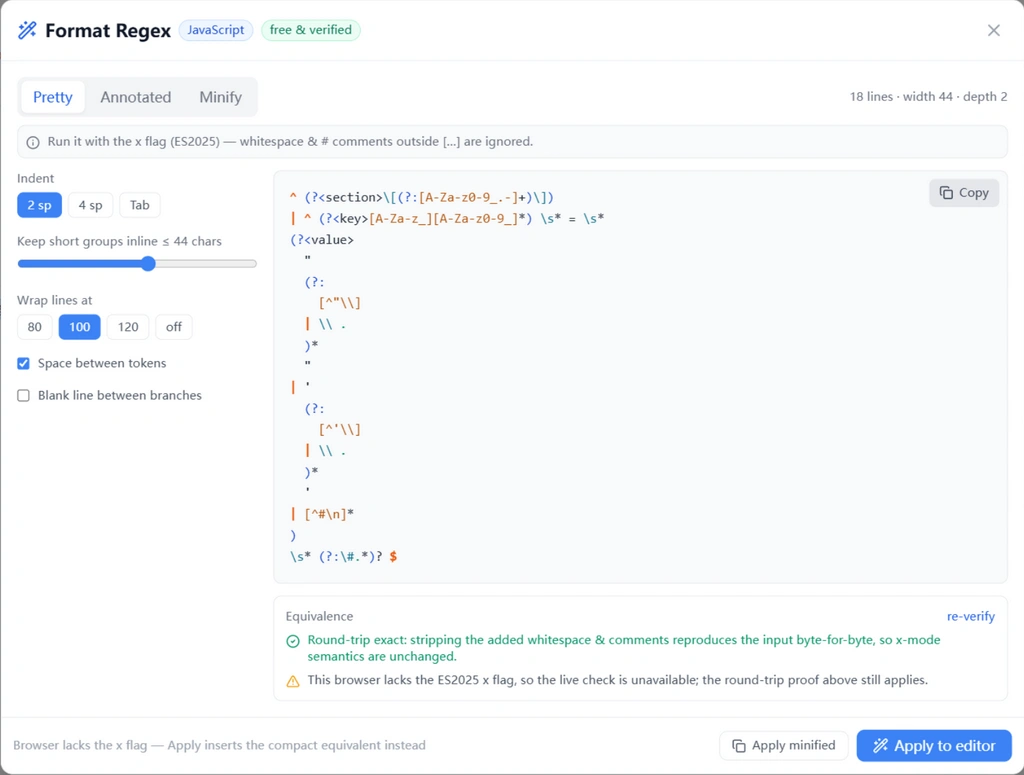
The left column holds the style decisions: indent unit (2 spaces, 4 spaces or tabs), how wide a group may get before it's expanded, where wrapped lines break, whether tokens are separated by spaces, whether branches get a blank line between them. The output on the right updates live as you move any control, and your choices persist between sessions.
Three modes: Pretty, Annotated, Minify
Pretty
Pure structure, no commentary — the form you merge into source code. Whitespace between tokens is inserted where it helps (\s* = \s* instead of \s*=\s*), everything else is layout.
Annotated
The same layout plus inline # comments derived from the parsed syntax tree — not canned strings. Capturing groups are numbered in the order the engine assigns them, named groups carry their name, and constructs that merely look similar get distinguished: a lookahead says it asserts ahead, an atomic group says it refuses backtracking, a conditional says what it is.
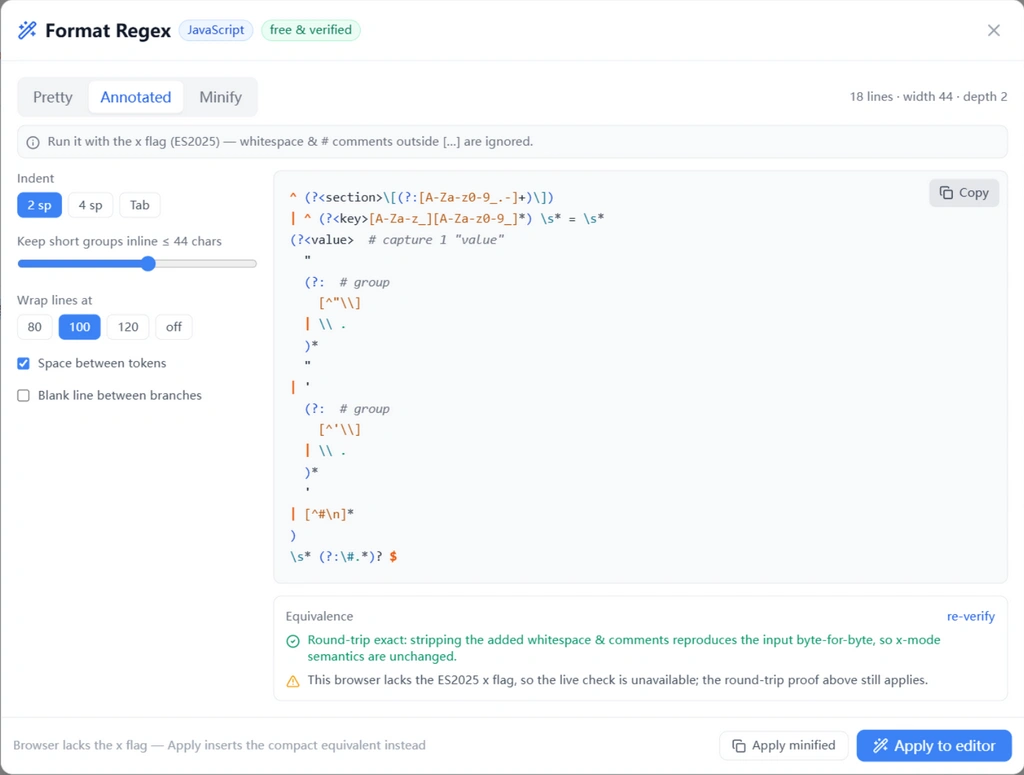
Because the comments come from the AST, they're dialect-aware: the same (?<name>…) is an ordinary named capture everywhere, but a (?'name'…) only exists in flavors that support that spelling, and the annotations follow what your selected flavor actually allows. Use it as documentation for the review thread, the wiki page, or your future self.
Minify
The reverse operation, for when you need the opposite direction: paste a sprawling free-spacing pattern from a config file or a codebase and get the compact one-line equivalent. Minify strips whitespace and # comments — outside character classes and escape pairs, which are exactly the places free-spacing mode treats as significant — and leaves every other byte alone.
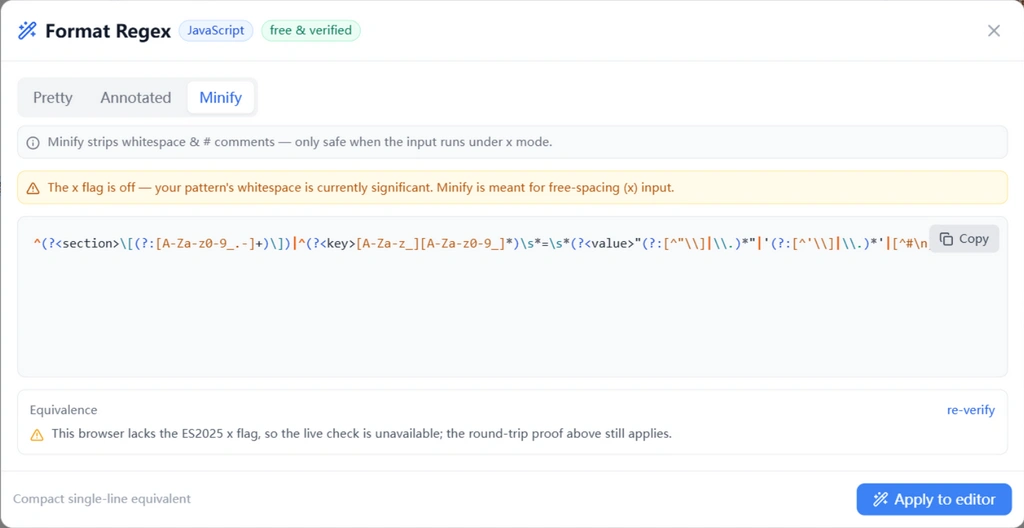
Minify is honest about its limits: if the x flag is off, it warns that the pattern's whitespace is currently significant and shouldn't be stripped — that's the one case where “removing whitespace” would change meaning.
Why the layout can't change behavior
Reformatting working regex is scary for one reason: whitespace is a construct in regex. A space can be a required literal, a token separator you'll never see, or — under free-spacing mode — nothing at all. A formatter that guesses wrong doesn't make your pattern uglier, it makes it match something else.
So this formatter is built on a rule it cannot violate: every token is copied verbatim from the source pattern, straight from the parser's token spans. The formatter only ever inserts whitespace, newlines and comments between tokens — which is precisely the category of bytes free-spacing mode ignores. Three consequences fall out of that rule:
- A literal space in your pattern becomes \ (or \t, \n, …) in the output, so free-spacing mode can't eat it.
- A literal # becomes \#, so it can't start a comment.
- Character-class interiors are left completely untouched — whitespace inside […] is significant even under x mode, so the formatter never adds, removes or wraps anything there.
The same scanner powers Minify in reverse: it only removes the byte categories free-spacing mode ignores, and it walks the text with the same class- and escape-awareness so an escaped space or a class containing a b#c survives intact.
Verified, not assumed
“Trust me, the layout is safe” is not a review argument, so the panel shows its work at the bottom of every run:

Round-trip proof. The formatter re-minifies its own output and compares it, byte for byte, with the escaped input. If the only difference between your pattern and the formatted text is whitespace and comments outside classes — exactly what x mode ignores — the green Round-trip exact line appears. Any other difference turns the line red and tells you to check the parse errors above.
Live behavior check. Static proof covers the text; the dynamic check covers the meaning. Both forms — original and formatted, the latter with the x flag enabled — are executed against your current test string on the real engine for your flavor, and every match is compared: text, position, and each capture group's content. Only identical match lists earn the green Behavior verified line; any divergence is flagged as a mismatch you should investigate before trusting the output.
And when the browser doesn't support the x flag yet, the panel says so explicitly instead of pretending — the round-trip proof still applies, and Apply falls back to inserting the compact equivalent so the editor never receives a multi-line pattern the runtime would misread.
Your dialect's x mode, handled
Free-spacing is spelled differently everywhere: the x modifier in PCRE, re.X / re.VERBOSE in Python, Pattern.COMMENTS in Java, IgnorePatternWhitespace in .NET, and the newly standardized x flag in ES2025 JavaScript. The formatter knows which flavor you're on and shows the right way to enable it — including the inline (?x) and scoped (?x:…) forms where they apply.
Flavors without any free-spacing mode get told that too, clearly, instead of being handed a multi-line pattern that would silently change meaning: for those, the panel points you at Minify or suggests keeping the annotated output as documentation next to the one-line pattern. Parsing, annotations and suggestions are all dialect-aware across the nine flavors the tester supports.
How it compares
Regex formatters exist — usually as structure-only re-layouts of a single flavor, usually without any check that the result still matches, and not rarely behind a paid subscription. This one was built against that bar:
| Capability | Typical formatters | This regex formatter |
|---|---|---|
| Layout | Fixed style: groups on their own lines | Adjustable indent, inline-group threshold, wrap width, token spacing, blank lines between branches |
| Comments | None — structure only | Annotated mode: comments derived from the syntax tree, numbered per the engine’s group order, dialect-aware |
| Safety story | “Should be equivalent” | Byte-exact round-trip proof shown on every run — minify(format(p)) compared against the escaped input |
| Behavior check | None — layout is assumed safe | Live run of both forms on the real flavor engine against your test string, comparing every match and capture group |
| Reverse operation | None | Minify mode folds free-spacing patterns back to one line, class- and escape-aware |
| Flavors | Usually one | 9 dialects, with the correct way to enable x mode per flavor — and a clear message where none exists |
| Workflow | Copy out of the tool | Apply writes the formatted pattern back into the editor and enables x mode in one click; a deep link (/format) opens it pre-armed |
| Privacy | Patterns sent to a server | Everything runs locally — nothing leaves your browser |
| Price | Commonly a subscription feature | Free, no account |
Also in the box: live stats (lines, width, depth), session-persistent style options, and the /format deep link.
FAQ
Will the formatted pattern still match the same text?›
Yes — and the panel proves it two ways before you apply anything: a byte-exact round-trip check (minify(output) must equal the escaped input) and a live run of both forms against your test string comparing every match and capture group. Formatting only inserts whitespace and comments between tokens, which is exactly what free-spacing mode ignores.
Where do I enable free-spacing mode so the multi-line form works?›
The panel shows the right spelling for your selected flavor: the x modifier for PCRE, re.X or re.VERBOSE for Python, Pattern.COMMENTS for Java, IgnorePatternWhitespace for .NET, and the x flag for ES2025 JavaScript. Apply turns it on for you in the editor when the runtime supports it.
What exactly does Minify remove?›
Only the bytes free-spacing mode ignores: unescaped whitespace and # comment tails outside character classes. Escape pairs (\ , \# , \\ …) and character-class interiors are copied verbatim, so [a b#c] and an escaped space survive minification untouched.
What happens to characters my pattern needs, like a literal space or #?›
They are escaped in the output: a literal space becomes \ , a literal # becomes \#, a tab becomes \t, and so on. Inside character classes nothing changes, because whitespace there is significant even under x mode.
The pattern I want to format has a parse error. Now what?›
The formatter still produces its best-effort layout, but the panel shows the parser’s error message, withholds the round-trip guarantee, and tells you the output is not guaranteed behavior-preserving — fix the error first, then format.
Does it send my patterns anywhere?›
No. Parsing, formatting, both verification steps and Minify run entirely in your browser. Nothing is uploaded, ever.
Your gnarliest pattern, readable in one click
Open the formatter on any regex — the one nobody wants to touch — and read it as structure instead of noise. The proof that it still matches is right there under the output.
Open the Regex Formatter